
Independent information guide · Not the official operator
Tashan Win for iOS: iPhone App Availability and Browser Help
A verified native Tashan Win iOS application is not established in this guide. If you are looking for an iPhone download, check the publisher and distribution source before accepting a page’s claim.
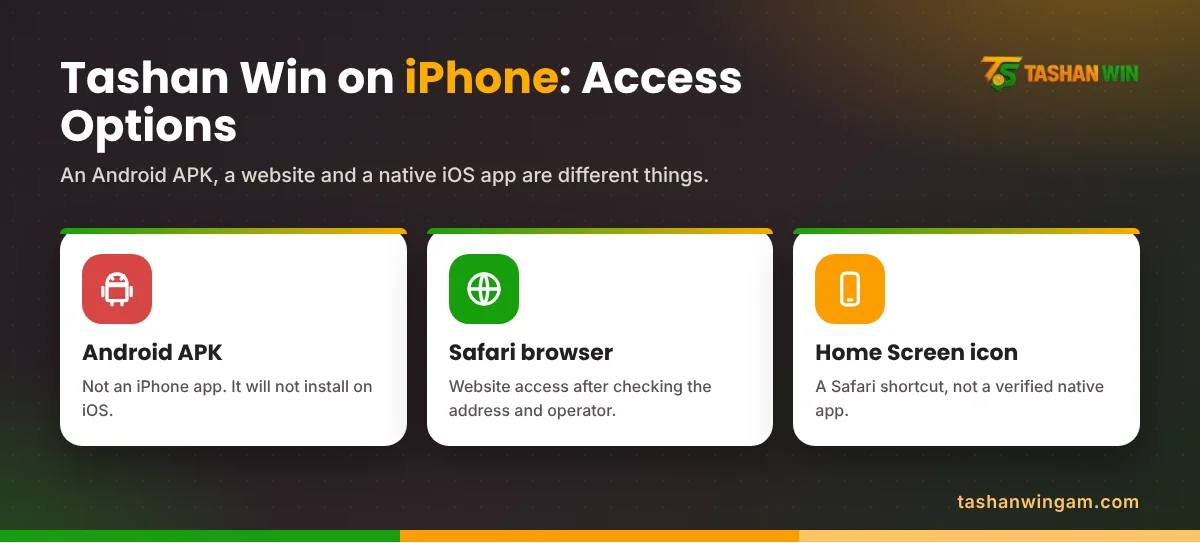
An Android APK cannot serve as an iPhone application. Browser access, a Home Screen web app and a native iOS release are different ways of using software, and each needs to be assessed on its own.
This page explains those differences and the checks that matter for existing-account access on an iPhone.
Is There a Confirmed iPhone App?
An app claim should lead to identifiable publisher information, supported device requirements and an authenticated distribution route. A promotional image showing an iPhone does not establish any of those details.
If a store listing is offered, compare the developer’s identity with the operator’s documented information. Check the description and privacy details instead of relying on a similar name or icon.
This guide does not confirm an App Store listing, a minimum iOS version or a supported iPhone model. Those specifications should come from a verified release.
Do not treat a “download for all devices” button as proof that separate Android and iOS versions exist.
Understanding Browser Access
A service may provide a mobile website independently of any installed application. Whether a particular Tashan Win website works correctly in Safari has not been tested or confirmed here.
Where access is verified and lawfully available, a browser lets you view the site without first accepting an unfamiliar installer. It does not remove the need to check the website address and operator.
Start with an updated browser and a device you control. If a page redirects or asks for unexpected information, investigate before signing in.
An existing account may also have access restrictions that a different browser cannot resolve.
Adding a Website to the Home Screen
Safari can add a website to the iPhone Home Screen. This is an Apple browser feature and does not establish that the website offers a verified native app.
For a website you have independently checked:
- Open it in Safari.
- Open the Share options; their location can vary with the browser > layout.
- Choose Add to Home Screen.
- Review the displayed name.
- Use Open as Web App if the option appears and you want that > behaviour.
- Confirm Add.
An icon then provides access from the Home Screen. Notifications, offline functions and other behaviour should not be assumed for a particular service.
Adding the icon does not verify ownership, approve payments or change the legal status of the website. Keep those questions separate from the convenience of a shortcut.
Using an Existing Account on iPhone
Check the account identifier requested by the verified form. Use the same phone number, email or username associated with the original account, as applicable.
If saved credentials appear, check that they belong to the intended site. Autofill is convenient, but accepting the wrong entry can create a misleading password error.
Complete only a verification action you requested. Keep codes private and read what the message says they authorise.
After signing in, confirm that the displayed account and history are yours before changing details. If the account looks unfamiliar, stop and recheck the identifier.
Safari Problems and Practical Checks
A Blank Page or Broken Layout
Record whether the whole site fails or only one screen. Check that the internet connection works with an unrelated, familiar website.
Then reload once or restart Safari. If the problem persists, note the iOS version, browser and exact page involved for a support request.
Do not repeatedly submit a form whose result is unclear. Check the account history first if an action may already have been recorded.
Login Returns to the Same Screen
Read any error near the form, including text that may be below the visible area. Confirm the credentials and whether a verification stage remains unfinished.
A redirect loop can have more than one cause. Avoid declaring it an account ban without a relevant notice.
Before removing site data or saved sessions, preserve records and confirm that account recovery is available.
The Home Screen Version Behaves Differently
Open the checked address directly in Safari and compare the result. Record which version displays the error.
This comparison can help identify where a problem occurs. It does not prove that all functions are supported in either mode.
Downloads, Profiles and Unfamiliar Instructions
An APK labelled “iPhone version” remains an Android package. Renaming it does not establish an iOS release.
Do not install an unfamiliar configuration profile or accept instructions to weaken device security simply to complete a game download. Ask for an authenticated explanation of the distribution method.
Never give a helper your Apple Account password, verification code or device passcode. App access should not require a stranger to control your personal account.
Avoid tools sold as APK-to-iPhone converters for a specific service when the publisher has not documented a compatible release.
Existing Payments and Account Records
If you use an iPhone to investigate a past payment, keep the banking record separate from the website’s status. A display problem does not tell you whether a transaction succeeded.
Save the amount, reference and time before changing browsers or removing a shortcut. Contact the relevant financial provider if the bank record needs tracing.
Changing device does not establish eligibility, fix a missing payout or change India’s restrictions on online money gaming. Do not send a fresh payment just to test whether the iPhone version works.
What to Include in an iPhone Support Request
Describe the device, iOS version, browser and exact error. Explain whether the issue appears in Safari, a Home Screen web app or both.
For an account issue, provide the minimum non-secret identifier required through a verified channel. For a payment issue, use its reference.
Keep unrelated photos, messages and banking activity out of screenshots. A focused record is easier to assess and exposes less personal information.
Frequently Asked Questions
Can I download a Tashan Win APK on iPhone?
An APK is for Android. Downloading the file does not make it an iPhone application.
Is a native iOS release confirmed?
No publisher-verified native release is established in this guide. Check authenticated app information before relying on a download claim.
Does Add to Home Screen create an official app?
It adds access to a website through an iPhone feature. It does not establish the website’s official status or a native app release.
Will using Safari resolve a withdrawal problem?
Safari may display account information, but payment tracing needs the relevant transaction records. Browser choice does not guarantee a payout.
Can I recover my account without the old phone?
That depends on the service’s established ownership and recovery process. Do not assume a new device removes verification requirements.
Choose Access Based on Verified Information
For Tashan Win on iOS, establish whether you are dealing with a native release or a website. Keep the publisher checks, account records and device protections in place, and avoid treating a Home Screen icon as proof of the service’s legitimacy.